Safety & support
Troubleshooting CS2 cheats: fix common launch and menu problems
Find the exact stage that is failing, apply focused checks and collect the information support needs to help quickly.
8 min read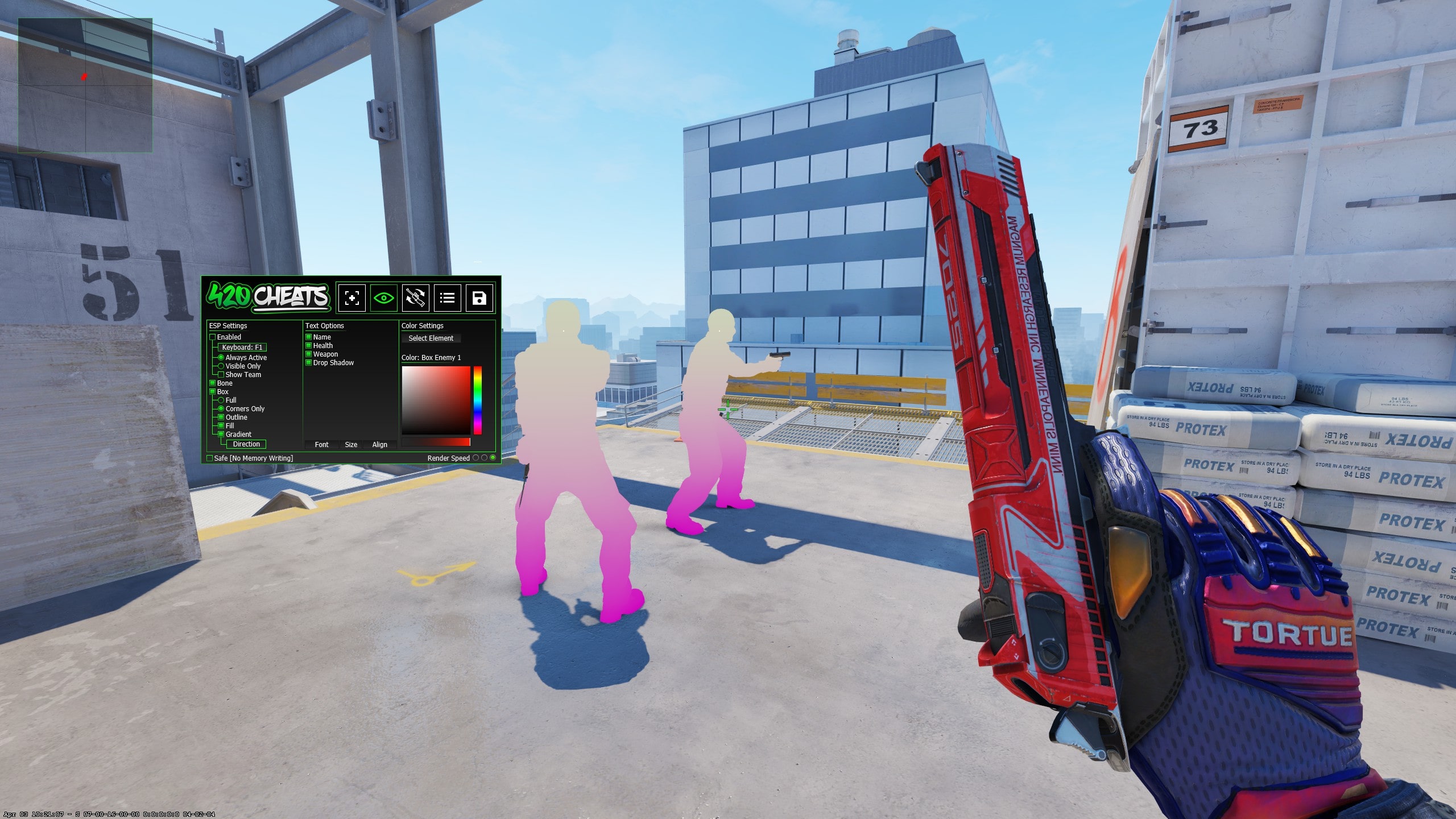
Key takeaways
Begin with status and version checks
Confirm that Counter-Strike 2 launches normally and that the product is currently available for the latest game build. If CS2 updated recently, compare the client version and official release notes before changing Windows settings.
Download a fresh copy from the official destination when support says a new build is required. Do not mix files from separate releases or products, because similar menu names do not mean the clients are interchangeable.
When the client does not open
Note whether Windows shows an error, the process appears briefly, authentication fails or nothing visible happens. Close any existing copy before retrying. Confirm the archive was fully extracted and that you are following the instructions supplied with that exact product.
If security software intervenes, record its full message and use the verification process in the antivirus guide. Do not solve an unexplained warning by weakening protection across the whole computer.
When the menu does not appear
Verify the correct menu key. The free build commonly uses Insert, while another product may use Delete or a configurable shortcut. Compact keyboards can require an Fn combination. Test once from the CS2 main menu before assuming the feature is broken.
Confirm the Steam overlay works and test borderless or windowed display mode if another overlay appears to be covering the menu. Close unrelated overlay applications one at a time to identify a conflict.
When a feature behaves incorrectly
Return the feature to a simple baseline and test one option. For aim settings, start with the activation key, then FOV and smoothing. For ESP, enable one player element before adding boxes, bones, weapons and world items. For skins, test one weapon before loading a saved configuration.
If the problem appears only on one map, weapon or account, include that detail. A general reinstall is less useful than identifying the smallest repeatable condition that produces the issue.
Performance and FPS checks
Compare performance with the client closed, with the menu open and with only the required feature enabled. Browser radar viewers should also be tested on the same device and a second device to separate game performance from browser rendering.
Reduce unnecessary visual elements and close recording or overlay tools that are not needed for the test. Record the approximate FPS difference and display mode before contacting support.
Create a useful support request
Send the product name, Windows version, current CS2 version if known, the exact failure stage, any error text and the checks already completed. Include a screenshot or short recording that does not reveal private account or payment information.
A concise, reproducible report helps support identify a status issue, setup mistake, menu conflict or product-specific bug without asking you to repeat the same basic checks.